
Download Splitty – Free File Splitter for Windows, Mac & Linux with Secure Splitting & Self-Extracting Support
Looking for a reliable, fast, and secure way to split large files across multiple devices? Splitty is a powerful file splitting tool designed to help users divide large files into smaller, manageable parts without compromising data integrity. Whether you're working with massive video files, large archives, or transferring data over platforms with size limits, Splitty ensures your files are split accurately and efficiently.
With built-in checksum verification, support for self-extracting archives, and cross-platform compatibility, Splitty is an essential software for anyone who frequently handles large file transfers. Available as a free download for Windows, Mac, and Linux, this lightweight tool delivers professional-grade performance with a user-friendly interface. No more worrying about corrupted splits or lost data—Splitty keeps your files safe and organized.
Key Features of Splitty – Why It Stands Out
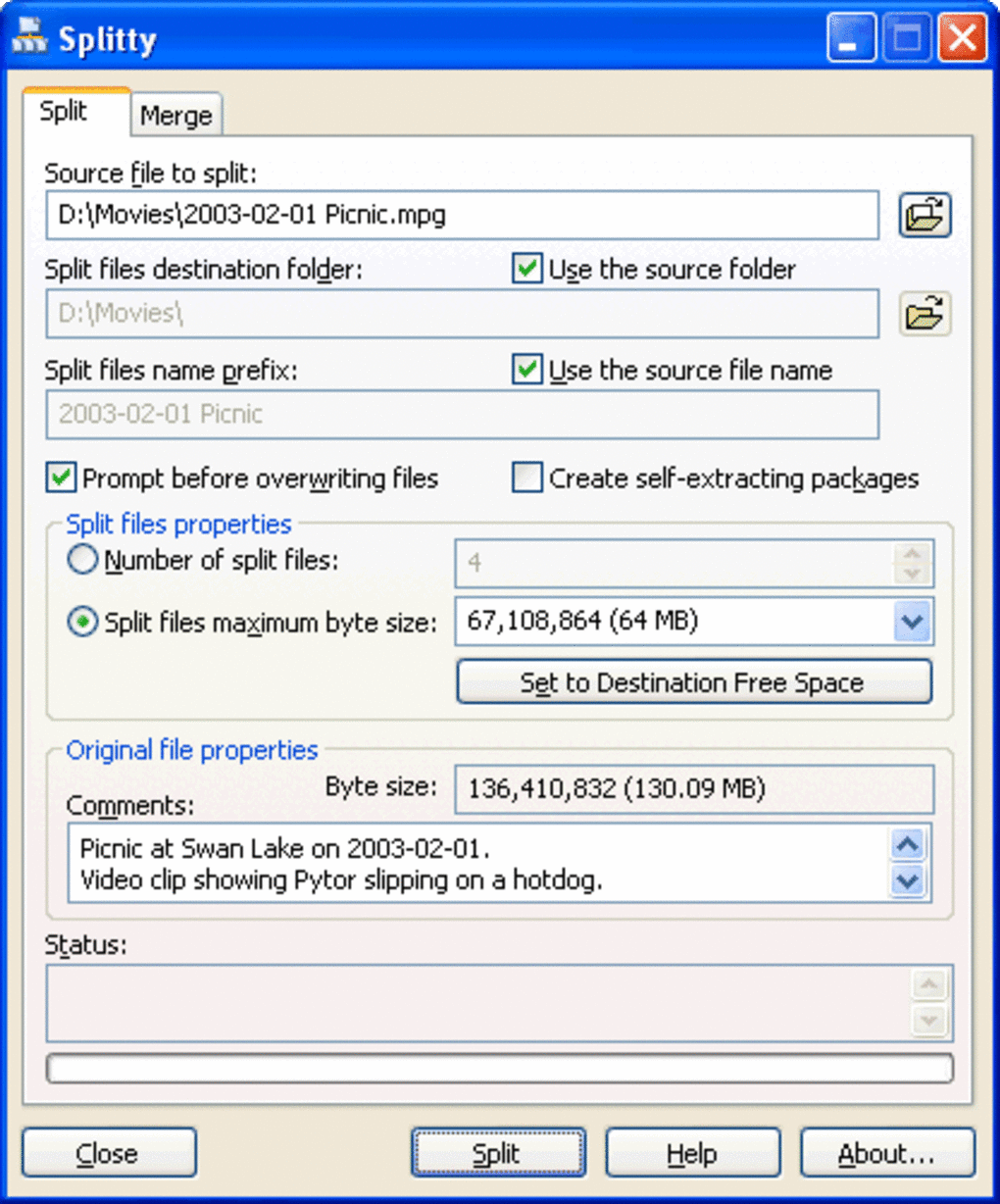
Splitty isn’t just another file splitter—it’s a smart, secure, and efficient solution built for real-world file management challenges. One of its standout features is the checksum verification system, which automatically checks the integrity of each split segment. This means that even if a file is interrupted during splitting or corrupted during transfer, Splitty detects and alerts you before any irreversible damage occurs. This level of data protection is rare in free tools and makes Splitty a trusted choice for professionals and casual users alike. Another powerful feature is the ability to create self-extracting split files. Instead of requiring users to download a separate decompression tool, you can generate a single executable file that automatically splits and reconstructs the original file when run. This is especially useful when sharing files with non-technical users or sending files over email platforms with strict size restrictions. The self-extracting capability eliminates the need for additional software and streamlines the file-sharing process. Splitty also supports drag-and-drop functionality, allowing users to quickly add files to the interface with minimal effort. Whether you're splitting a 10GB video file for cloud upload or breaking down a large database for backup, the process is intuitive and fast. You can also add custom comments to each split file, which is ideal for multimedia projects where file tracking and versioning matter. For example, a video editor can label each split part with scene numbers or timestamps. Additionally, Splitty works seamlessly with external drives and network locations, making it perfect for users working with large media files stored on NAS devices or external hard drives. The tool maintains performance even with high-volume data, thanks to its optimized splitting algorithm. With support for multiple file formats and no hidden costs, Splitty delivers a complete file-splitting experience—secure, fast, and free.How to Install and Use Splitty on Windows, Mac, and Linux
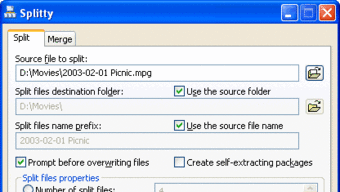
Getting started with Splitty is straightforward, regardless of your operating system. First, visit the official website and download the appropriate version for your device—whether you're using Windows 10/11, macOS (Intel & Apple Silicon), or Linux (Debian, Ubuntu, RPM-based). The installation process is quick and requires no complex configuration. On Windows, simply run the .exe installer and follow the on-screen prompts. On Mac, drag the app to your Applications folder. Linux users can either use the .deb or .rpm package, or run the portable version directly. Once installed, launch Splitty and you’ll be greeted with a clean, minimalist interface. To split a file, simply drag and drop your large file into the main window. You can then choose the desired size for each split segment—common options include 100MB, 500MB, or 1GB, but custom sizes are also supported. You can also enable the self-extracting archive option if you want the split file to be executable upon opening. After configuring your settings, click the “Split” button. Splitty will begin processing your file, displaying a progress bar and estimated completion time. Once complete, the split parts will be saved to your chosen folder, each labeled with a sequential number (e.g., file_part_001.bin, file_part_002.bin). The original file remains untouched, ensuring data safety. To reassemble the split files, simply open Splitty again, click “Merge”, and select the first part of the split series. The tool will automatically detect and recombine all parts using the checksum verification to ensure accuracy. No extra tools or technical knowledge required—just drag, split, and merge with confidence.Pros and Cons of Using Splitty
- Pros:
- Free and open to all users with no trial limitations
- Secure splitting with built-in checksum verification
- Supports self-extracting archives for easy sharing
- Intuitive drag-and-drop interface across Windows, Mac, and Linux
- Works with external drives and network locations
- Allows adding custom comments to split files
- Fast processing with minimal system resource usage
- Portable version available for USB drives
- Cons:
- No built-in compression (splits files without reducing size)
- Interface is minimal—may lack advanced options for power users
- Self-extracting files can trigger antivirus warnings (common with such tools)
- Limited file format support (only splits standard files, not folders)
- No cloud integration (e.g., no direct upload to Dropbox or Google Drive)
Frequently Asked Questions (FAQ)
-
Is Splitty free to download and use?
Yes, Splitty is completely free to download and use. There are no trial periods, subscription fees, or hidden charges. The software is open to all users and supports full functionality without limitations.
-
Can Splitty split folders or only individual files?
Splitty can only split individual files, not entire folders. However, you can compress a folder into a .zip or .rar file first, then split the archive using Splitty.
-
Does Splitty work with external hard drives and network drives?
Yes, Splitty fully supports files stored on external drives and network locations. You can split files directly from a USB drive, NAS, or shared network folder without copying them first.
-
Are self-extracting files safe to send via email?
Self-extracting files are safe to send, but some antivirus programs may flag them due to their executable nature. To reduce warnings, you can sign the file with a digital certificate or inform the recipient in advance.
-
How does Splitty ensure file integrity during splitting?
Splitty uses a checksum algorithm to verify the size and consistency of each split segment. If any part is corrupted during splitting or transfer, the tool detects it and alerts the user before merging.







